
ByteStand is a Shopify app that allows you to import products from Amazon into your Shopify store, as well as automatically send orders from your store to Amazon. ByteStand also offers MCF/FBA Shipping, enabling you to ship orders from Shopify directly to Amazon using the FBA (Fulfillment by Amazon) or MCF (Multi-Channel Fulfillment) service.
Multi-Channel Fulfillment allows companies to send fulfillment requests for sales they have received on other platforms. Orders for products you sell on Amazon are not eligible for MCF but can be fulfilled by Amazon using FBA.
Features offered by ByteStand:
- Easy setup of virtual bundles
- Price and inventory synchronization with your store from any of your Amazon accounts.
- Fulfill imported orders from any marketplace, including Etsy, Walmart, or eBay.
- Automate the FBA / MCF fulfillment process worldwide with no effort on your part.
In this article, we will review the setup process for the ByteStand – MCF/FBA Shipping app for Shopify.
Installing the ByteStand App
- First, go to the Shopify apps page and install ByteStand. After installing the app, open it and log into your ByteStand account.
-
Select the country where your FBA products are physically stored. If you store your inventory in multiple countries, Amazon will allow you to ship your Shopify orders within those countries. When selecting a country, you will be directed to the Amazon account login page. After logging in, you will be taken to another page; check the permissions the app requires, scroll down, select the confirmation box, then click “Confirm”. You will then return to the app setup page. For the next step, click “Next”.

-
Choose which shipping rates you want to use, order settings, and fulfillment options, then click “Save”. On the right, you will see the monthly payment amount calculated based on your settings. You can change these settings at any time. If you initially selected multiple countries where your products are located, you need to configure these settings for all your locations and save. After completing all settings in this step, click “Next”.

-
Select the desired number of SKUs, enable the function below if you want inventory to update every 30 minutes. Without this function, inventory will update every 8 hours. If you do not want to use the FBA shipping app’s inventory sync feature, click “No thanks”.

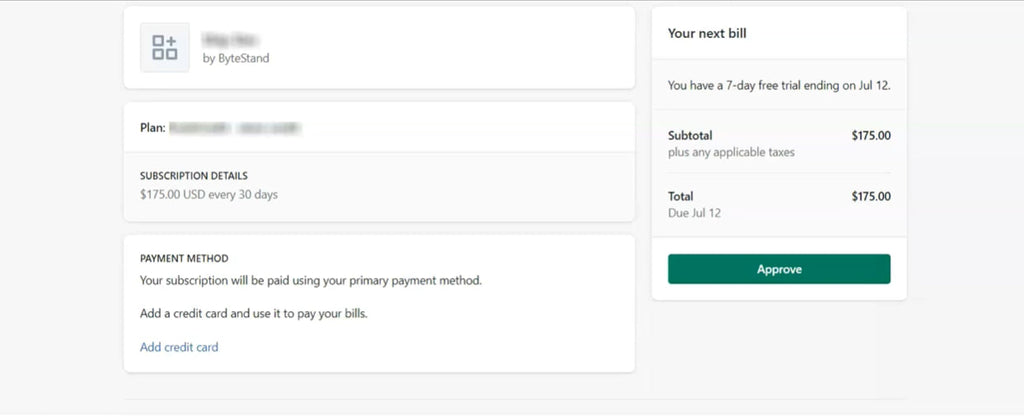
On the next page, you can enter a coupon code. After that, you will be taken to the subscription page, and once you approve it, you can continue using and configuring the app.
Setting Up Shipping Rates
The next step after installing the app is to configure the features you enabled when purchasing the app subscription.
To set up shipping rates, select “Rates” and click “Setup Rates”. For your convenience, setup steps will appear on the right. Complete these 3 steps listed under the numbering on the right for each rate.


Also, configure rates for imported orders from other marketplaces by first checking under what name they are imported and then applying the appropriate Amazon rate to that name. If you selected multiple warehouses initially, you also need to configure all rates for all your warehouses.

Configuring Sync Settings
In the menu, click Products and select Sync Settings. Your products will be listed here.
On this page, you should edit two areas: the location of the product in the Amazon warehouse and select the product location that matches what you chose in Shopify.
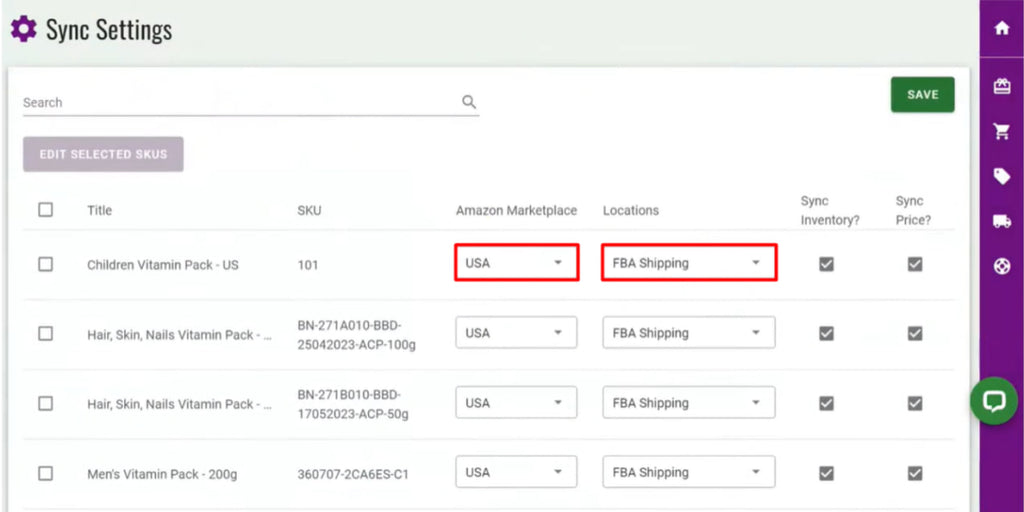
You can check which fulfillment service your products are assigned to in Shopify. To do this, go to Shopify Products, select all products, and click “Edit Products”. Then, in the top right corner, click the “Columns” button and select “Stoked at”, which will add another column. To have your orders fulfilled by FBA, select “FBA Shipping” in the new column for each product and save the changes by clicking “Save”.

Checking Settings
After setting up the ByteStand – MCF/FBA Shipping app for Shopify, verify that all parameters are configured correctly. To do this, you can create a test order in your Shopify store and check how the order is sent to Amazon.
If you encounter any issues while setting up the ByteStand - MCF / FBA Shipping app for Shopify, you can contact ByteStand or Amazon support.
Setting up the ByteStand - MCF / FBA Shipping app for Shopify may seem like a complex process, but with the right steps and instructions, it can be done easily. After installation, you will be able to automate the order shipping process and improve your business efficiency.
If you want to connect multiple Shopify stores to Amazon, we recommend considering the Sellbrite app, which supports multichannel integration. Read more about this app in our article Managing Multichannel Sales with Sellbrite (GoDaddy)


